

 By
By Introduction
A malfunctioning MacBook charger port can be a major inconvenience, disrupting your work and communication. While a faulty charger might seem like the obvious culprit, the problem could lie within the port itself. This guide aims to help you diagnose and resolve these issues efficiently, so your device can return to full functionality. Let’s explore how to identify the underlying problems.
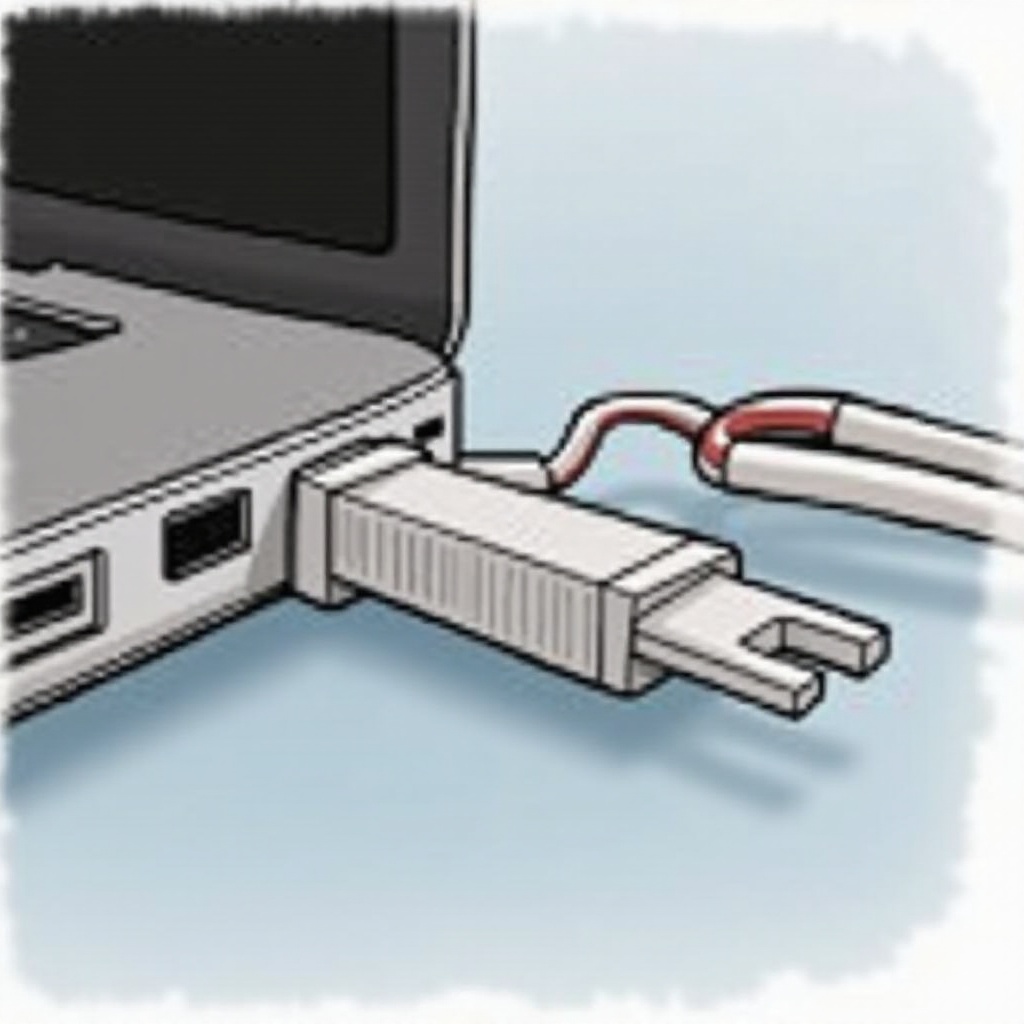
Identifying Charger Port Issues
Accurately identifying the problem is the first step in fixing your charger port.
Common Signs of a Faulty Charger Port: Does your MacBook only charge when the cable is positioned just right? Or perhaps the device charges intermittently? These signs could indicate port issues. Physical inspection may reveal visible dirt or damaged pins.
Distinguishing Between Charger and Port Problems: Use another charger to test your MacBook. If it functions correctly, your original charger may be the issue. If problems persist, it’s likely the port itself needs attention.
Now that you’ve evaluated the signs, let’s move on to preliminary troubleshooting steps.

Initial Troubleshooting Steps
These basic checks might just solve the problem without the need for advanced techniques.
-
Checking the Power Source and Cable: Ensure that the power source, such as an outlet or power strip, provides consistent power. Look for visible damage on your cable; a frayed wire can disrupt charging.
-
Inspecting the Charger and Port for Damage: Check the port and the charger’s connector for debris, bent components, or other damage. Issues may often require a professional’s touch.
-
Testing with a Different Charger: Swap your current charger for another to rule out charger-specific issues. This simple test can clarify whether the charger or port needs attention.
Having made these checks, cleaning the port could be your next step.
Cleaning the Charger Port
Dust and debris can impede the charger port’s ability to function properly, necessitating a good cleaning.
Essential Tools for Cleaning: Gather a can of compressed air, a soft, small brush like a toothbrush, and a flashlight. Avoid metallic tools to prevent damage.
Step-by-Step Cleaning Guide:
- Power down your MacBook and disconnect it from any power source.
- Use the compressed air to blow out debris from the charger port.
- Gently brush the port area to further loosen any stuck dirt.
- Use a flashlight to ensure that all visible debris is cleared.
While cleaning often fixes minor port issues, if your MacBook still struggles, you may need to tackle software solutions.
Software Solutions for Charging Problems
Not every issue requires a hands-on approach; some MacBook problems stem from software conflicts.
Resetting the System Management Controller (SMC):
- Power off your MacBook.
- Hold Shift + Control + Option + Power for ten seconds, then release.
- Restart your MacBook and check for improvements.
Ensuring macOS is Updated: A system update can resolve unnoticed bugs:
- Navigate to the Apple menu and select ‘System Preferences.
- Click ‘Software Update’ and follow the prompts to see if updates are available.
If these methods don’t resolve the charging issue, more advanced options might be necessary.

Advanced Repair Techniques
When basic cleaning and software adjustments don’t suffice, more intricate repairs may be required.
Realigning Pins in the Charger Port: Should you notice bent pins, carefully use a non-metallic tool to realign them. Proceed with caution to prevent exacerbating the issue.
Testing Electrical Flow with a Multimeter: Verify the charger’s voltage output to ensure proper flow, indicating whether there might be deeper issues.
Identifying When Professional Help is Needed: If all attempts fail, consulting an Apple-certified technician is wise. Complex problems might require professional tools and expertise to resolve.
After following these steps, assess whether it’s more worthwhile to repair or replace components to ensure your MacBook functions optimally.
Conclusion
By understanding and addressing the causes of MacBook charger port issues, you can often rectify problems without professional aid. The steps provided equip you with strategies to diagnose and fix most port-related challenges. Regular maintenance and careful usage prolong your MacBook’s life and efficiency. Should your efforts not lead to a solution, consider professional services to protect your investment.
Frequently Asked Questions
How often should I clean my MacBook charger port?
Regular cleaning every few months can prevent dirt buildup and improve charging efficiency.
Can a faulty charger port damage my MacBook?
While a damaged port won’t destroy your MacBook, it can affect battery performance if not addressed.
Is it worth repairing an old MacBook’s charger port?
Consider the cost of repair against a new purchase. Sometimes replacement is more cost-effective.