

 By
By Introduction
Encountering a solid white light with no display on your PlayStation 5 can disrupt your gaming experience. This issue is typically linked to problems with HDMI connections or display settings. In this guide, we’ll explore comprehensive solutions to restore your PS5’s display functionality effectively.
Understanding the PS5 Solid White Light Issue
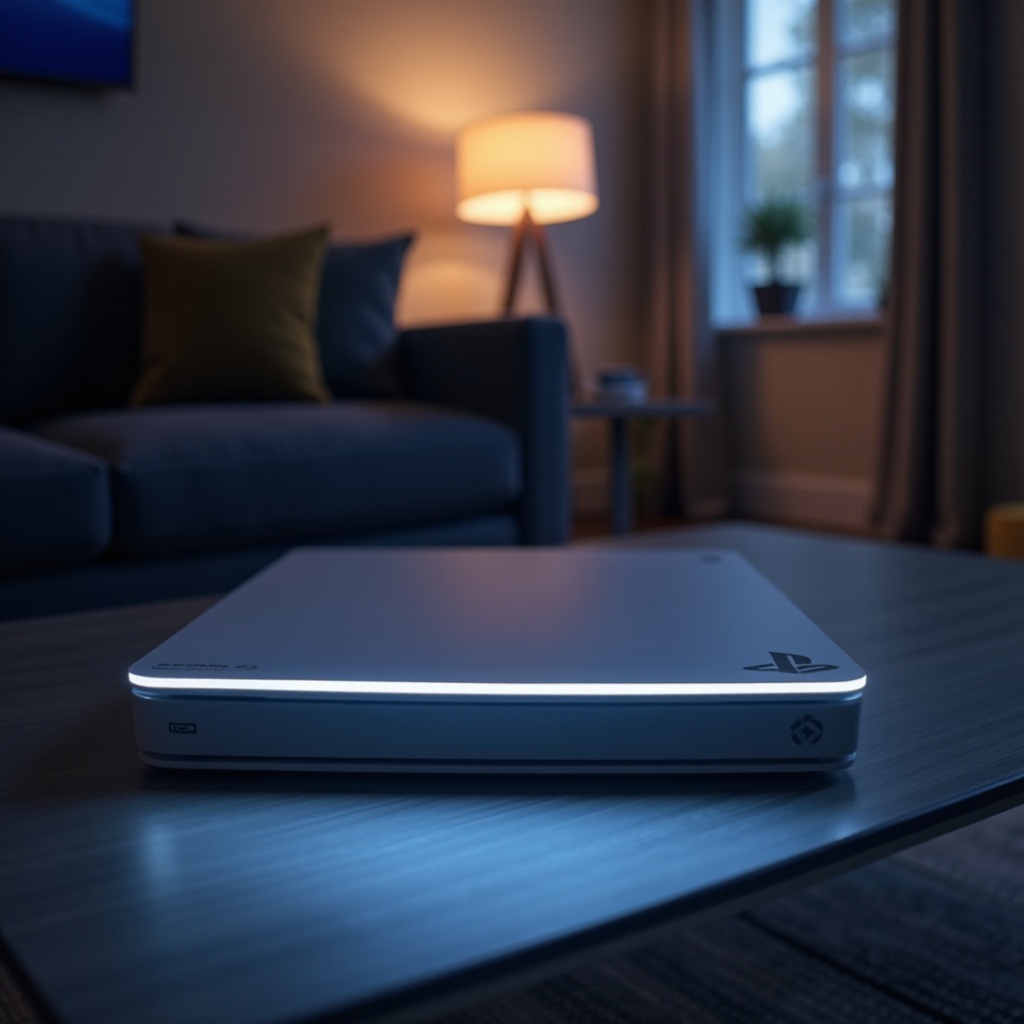
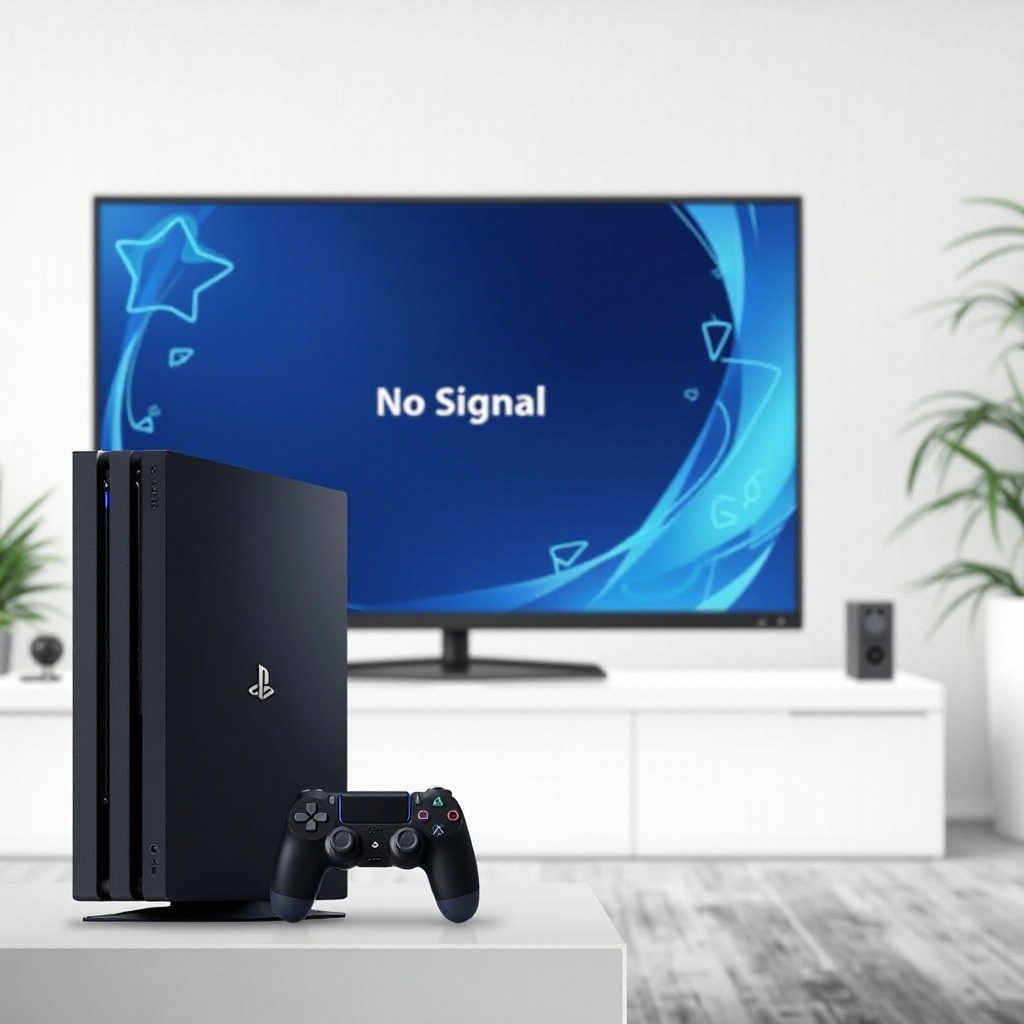
The appearance of a solid white light on your PS5 usually indicates that the console is powered on but not outputting a display signal to your TV or monitor. This problem generally stems from HDMI connection issues or incorrect display settings. Understanding this can help in troubleshooting and preventing future issues, ensuring a seamless gaming experience.
Initial Troubleshooting Steps
Start your troubleshooting journey with these basic steps to address the solid white light issue:
-
Verify Cable Connections: Double-check that all cables, particularly the HDMI cable, are firmly connected to both the PS5 and the display device to prevent signal disruption.
-
Check TV/Monitor Input Settings: Make sure your TV or monitor is set to the HDMI input source corresponding to your PS5, which is essential for displaying the signal correctly.
-
Test with Different Cables and Ports: Replace your HDMI cable with a known working one and try different HDMI ports on your TV or monitor to rule out cable or port issues.
Once these initial steps are exhausted, you may need to delve into more advanced troubleshooting techniques if the display remains faulty.
Advanced Troubleshooting Techniques
If basic steps do not resolve the issue, consider these advanced solutions to address persistent display problems:
-
Inspect HDMI Port and Cables: Examine both the PS5 and TV HDMI ports for any visible damage, dust, or debris. Clean them gently with a soft brush or cloth.
-
Reset Display Settings in Safe Mode:
- Fully power off the PS5.
- Press and hold the power button until you hear a second beep (approximately seven seconds).
- Connect a controller via USB and press the PS button.
-
Select ‘Change Video Output’ in Safe Mode to troubleshoot display settings.
-
Reboot PS5 Console in Safe Mode:
- Boot your console into Safe Mode following the steps above.
- Select ‘Rebuild Database’ to reorganize your console’s files and potentially restore normal functionality.
These detailed troubleshooting steps not only seek to solve the issue but also help you understand potential causes, assisting in future problem prevention.
Display Optimization Tips for PS5
Optimizing your display setup can prevent future connectivity issues and enhance your gaming visuals. Here are some tips to ensure your setup is optimal:
-
Configure Resolution Settings: Tailor your PS5 settings to match the highest possible resolution your display supports, accessible in the ‘Sound and Screen’ section of System Settings.
-
Update TV Firmware: Ensure your TV firmware is the latest version, which can enhance compatibility with the PS5 and improve display performance. This is usually done through the TV’s settings menu.
-
Use High-Quality HDMI Cables: Invest in high-speed HDMI cables that are certified for 4K and HDR content to ensure a stable and high-quality signal.
These optimizations ensure your gaming setup is robust, reducing the need for constant troubleshooting.
Preventive Measures for Future Issues
Preventive maintenance is key to ensuring your PS5 functions smoothly without recurrent display problems. Here are some simple preventive steps:
-
Regularly clean your console and surrounding areas to prevent dust buildup.
-
Use a surge protector to shield your electronics from power surges and maintain stable power delivery.
Staying proactive about maintenance not only prolongs the life of your console but also enhances the overall reliability of your gaming experience.
Seeking Professional Help
If you’ve tried all troubleshooting steps without success, consider reaching out for professional assistance. Sony support or a certified repair technician can offer specialized diagnostics and repairs beyond home troubleshooting capabilities.
Conclusion
By following these troubleshooting steps and maintaining a well-optimized setup, you should be able to resolve the solid white light no display problem effectively. Regular maintenance combined with our troubleshooting tips will help you enjoy a smooth and uninterrupted gaming experience. Do not hesitate to seek professional assistance whenever necessary, as preserving your console’s health is crucial for long-term performance.
Frequently Asked Questions
What does a solid white light on my PS5 indicate?
The solid white light signifies that the console is powered on but may not be transmitting a display signal to your TV or monitor.
How can I fix the ‘no display’ issue on my PS5?
Start by checking all cable connections and verifying the display input settings. If the problem persists, try advanced troubleshooting techniques such as resetting the display settings in Safe Mode.
When should I contact support for PS5 display issues?
If basic and advanced troubleshooting steps do not resolve the display issue, it is advisable to contact Sony support or a certified technician, especially if you suspect a hardware fault.