

 By
By Introduction
Horizontal lines disrupting your Samsung monitor display can be a vexing issue that affects usability and productivity. Understanding the causes and following a structured approach to troubleshooting can help restore your monitor’s functionality. This guide provides practical solutions, addresses common causes, and offers preventive tips to ensure your screen remains clear and uninterrupted.
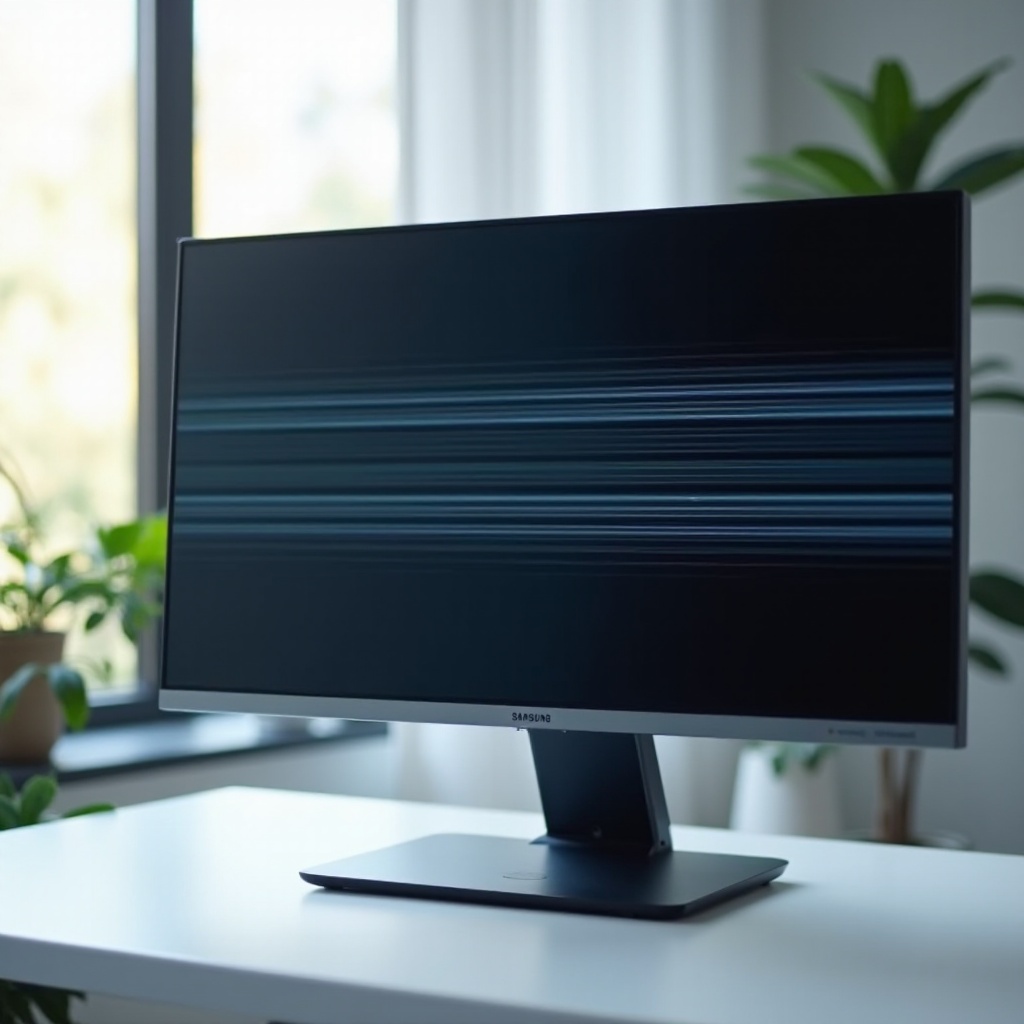
Understanding Horizontal Lines on Monitors
Horizontal lines may look perplexing but often stem from identifiable causes. Pinpointing whether these issues are hardware-related or due to software can guide you in selecting the right solution.
-
Common Causes of Horizontal Lines: Loose connections, outdated drivers, incorrect display settings, or internal hardware problems are frequent culprits leading to disrupted visuals. Issues could also arise from electromagnetic interference or faulty cabling.
-
Identifying Hardware vs. Software Issues: To determine if the problem is hardware-based, connect the monitor to another computer. If lines persist, the hardware is likely at fault. If lines vanish, look into software or cable concerns.
Understanding these foundational issues prepares you to undertake effective troubleshooting.
Initial Troubleshooting Steps
Before heading into complex solutions, these foundational checks could rectify the horizontal lines interfering with your display experience.
-
Check and Secure Connections: Verify all cables are properly connected. A loose HDMI or VGA cable can be responsible for screen irregularities. Disconnect, then reconnect cables to ensure secure and undamaged connections.
-
Update and Inspect Graphics Drivers: Faulty or outdated drivers often lead to display anomalies. Access the device manager or manufacturer website to check for the latest driver updates.
-
Adjust Refresh Rate and Resolution: Incorrect setting configurations may introduce horizontal lines. Navigate to your computer’s control panel and adjust both settings to match your Samsung monitor’s recommended specifications.
These initial measures can quickly improve your monitor’s performance and eliminate many common display problems.
In-depth Solutions for Persistent Issues
If preliminary troubleshooting doesn’t resolve the issue, exploring detailed fixes can further illuminate and solve the problem.
-
Testing with External Devices: Use a different computer or laptop with your monitor. Persistent lines suggest hardware faults; disappearance indicates original device issues.
-
Evaluating Cable and Port Functionality: Change the cables or use a different port to check if your current setup is contributing to the problem. Replacing a faulty HDMI or VGA cable might clear up the display.
-
Utilizing Monitor Built-in Diagnostics: Some Samsung models come with built-in diagnostic tools. Consult the user manual to run diagnostic tests that may uncover and resolve internal errors.
These comprehensive steps ensure thorough examination and resolving of persisting challenges.
Advanced Repair Options
For more serious issues, advanced intervention may be necessary when other solutions fail.
-
Firmware Updates: Check whether your monitor requires an update. Firmware updates, available on Samsung’s support website, can remedy bugs affecting your monitor’s operation.
-
Seeking Professional Repair Services: When DIY fixes don’t work, reaching out to Samsung’s service or professional assistance may be needed. This might include a detailed assessment at a service facility for substantial repair needs.
These advanced options are crucial for addressing severe and persistent technical impairments.
Prevention Tips for Future Issues
Avoid recurring problems with proactive measures to maintain your monitor’s performance and longevity.
-
Regular Maintenance: Keep your device clean and environment stable using surge protectors and eliminating electronic interference.
-
Safe Handling and Use: Protect your monitor by avoiding accidents, and following proper installation procedures to extend the device’s life.
Applying these preventive techniques helps bolster your Samsung monitor’s resilience against future issues.
Conclusion
Restoring your monitor’s display free from horizontal lines involves a mix of effective troubleshooting and preventive care. With understanding, patience, and strategic action, you ensure a seamless visual experience.
Frequently Asked Questions
Why does my Samsung monitor have horizontal lines after a power surge?
A power surge can affect monitor functionality. Unplug it to reset and use a surge protector to prevent similar issues.
Can a software update solve horizontal line issues on my monitor?
Yes, updating software or drivers may resolve issues if they are the cause of the display problem.
How can I differentiate between a hardware and software issue causing lines?
Test your monitor with another device. Persistent lines suggest hardware issues; disappearance indicates a software problem.