

 By
By Introduction
When your Nintendo Switch doesn’t recognize an SD card, it can halt your gaming progress unexpectedly. Typical causes are incompatibility, physical damage, or formatting errors. This guide explores practical solutions to resolve these issues and offers tips to prevent future occurrences, ensuring your gaming experiences continue uninterrupted.
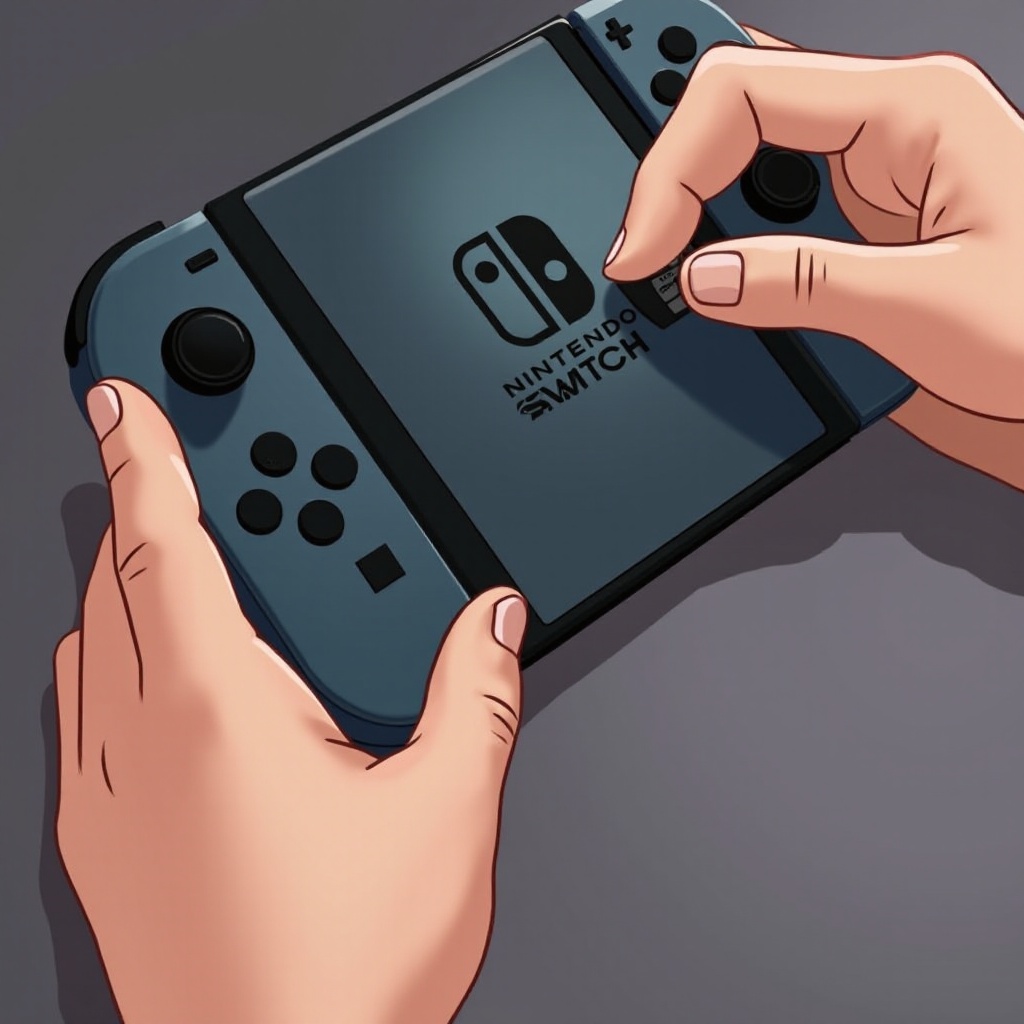
Understanding SD Card Compatibility
Before delving into fixes, understanding SD card compatibility is crucial. The Nintendo Switch requires specific SD cards, such as microSDHC or microSDXC, and supports up to 2TB. The card’s speed class, like Class 10 or UHS-I, significantly influences performance. Using a compatible card minimizes the risk of data access issues.
Having grasped the importance of compatibility, let’s examine the common reasons your SD card might not be readable, helping us determine the best troubleshooting steps.
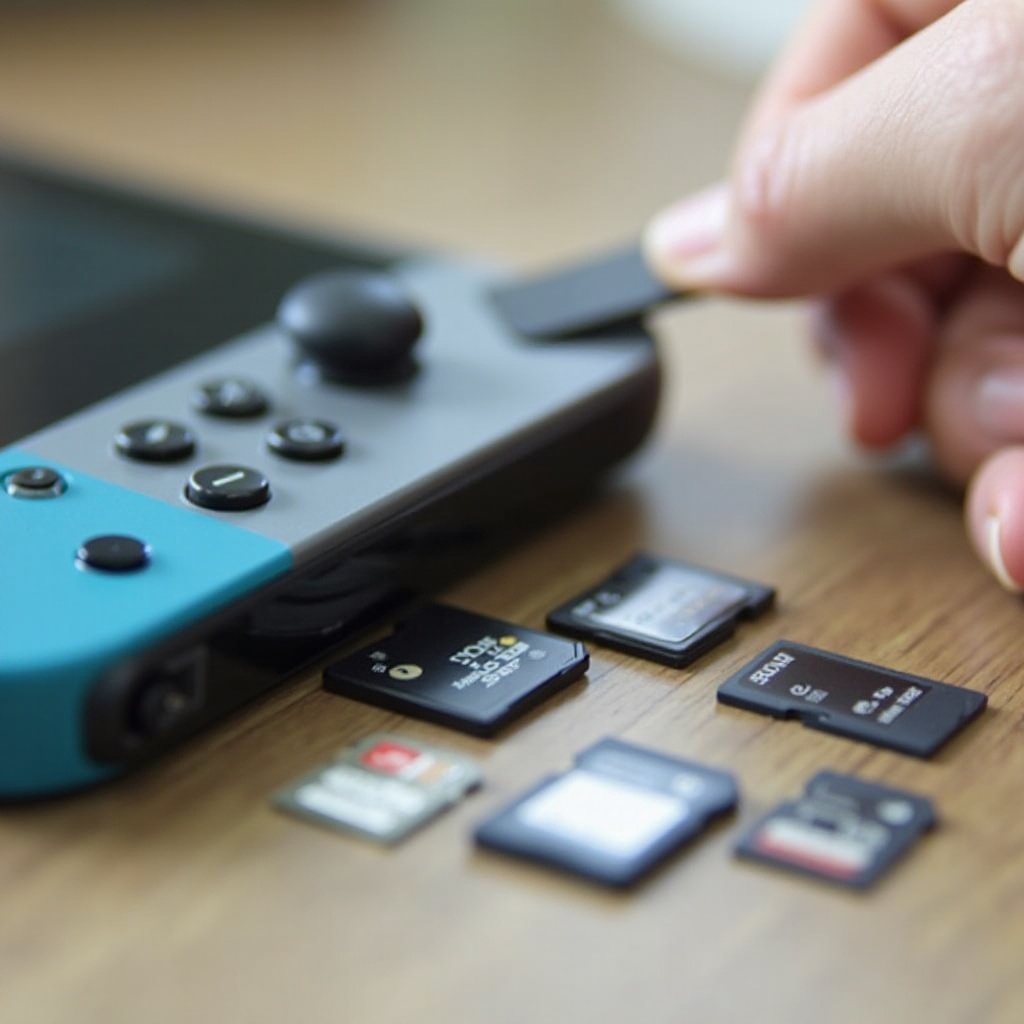
Common Causes of SD Card Reading Issues
SD cards can stop being read due to several common culprits:
- Incompatibility: Wrong card type or speed class for the console.
- Physical Damage: Any scratches, cracks, or environmental damage.
- Formatting Errors: Cards not formatted correctly, or files causing access issues.
Identifying the specific cause tailored to your situation leads to efficient problem-solving. With this understanding, we can now consider basic troubleshooting methods that often clarify or resolve the problem.
Basic Troubleshooting Steps
Begin with these simple strategies to potentially resolve the issue quickly:
- Restart the Console: Power off your Nintendo Switch completely, then restart. This can clear minor software bugs.
- Re-insert the SD Card: Remove and firmly re-insert the SD card, ensuring it sits properly in the slot.
- Test with Another SD Card: Determine if the problem is with the original SD card or the console by trying another compatible card.
If these methods don’t fix the problem, assess more technical approaches for deeper issues.
Technical Troubleshooting Techniques
For persistent issues, delve into advanced techniques to uncover and fix complex problems.
Reformatting SD Cards Properly
Reformatting can resolve formatting errors:
- Connect the SD card to a computer using an adapter.
- Access the disk management system on your computer.
- Select the SD card and choose ‘Format,’ using FAT32 or exFAT for cards larger than 32GB.
Checking SD Card Status with a Computer
Identify corrupted sectors or errors on the SD card:
- Insert the SD card into your computer.
- Right-click on the SD card, select ‘Properties,’ then ‘Tools.
- Run the available error-checking utility.
Updating Console Firmware
An outdated firmware can cause incompatibility issues:
- Access ‘System Settings’ on the Nintendo Switch.
- Navigate to ‘System’ and select ‘System Update’ to install the latest version.
These various strategies often remedy persistent technical issues, allowing us to look at potential hardware solutions if needed.
Alternative Solutions and Considerations
If challenges persist, consider other aspects or solutions:
- Switch to a different reputable brand, like SanDisk or Samsung, for higher reliability and performance.
- Use an SD card reader or adapter to verify hardware issues with the console’s slot.
- Seek professional repair services to evaluate hardware issues if problems continue.
Taking these steps can often resolve lingering issues, opening a pathway to proactive measures in the future.
Preventive Measures for Future Issues
Prevention is preferable to continual fix-it solutions. Here’s how to keep your SD card and console in top condition:
- Regularly inspect the SD card for signs of wear and replace it as necessary.
- Insert and remove the card carefully to avoid physical damage.
- Conduct frequent data backups to prevent loss from card failure.
Employing these methods minimizes risks and contributes to a better, uninterrupted gaming experience.
Conclusion
By following this comprehensive guide, resolving your Nintendo Switch’s SD card reading issues becomes a straightforward process. Ensure you use compatible cards, perform routine care, and update firmware frequently to avoid disruptions. Now you’re well-prepared to tackle these challenges, ensuring your gaming sessions remain seamless and enjoyable.
Frequently Asked Questions
Can I use any SD card with my Nintendo Switch?
No, you must use a compatible microSDHC or microSDXC card, typically up to 2TB, to ensure it functions properly with your Nintendo Switch.
How do I know if my SD card is damaged?
Check for physical signs like cracks or scratches. Using a computer to perform a disk check can also identify errors or corruption.
What should I do if my SD card still isn’t recognized after trying these steps?
Consider consulting professional repair services to investigate potential hardware issues with your console or SD card.