

 By
By Introduction
Laptop chargers are essential for keeping our devices running smoothly. When you encounter a broken laptop charger pin, it can disrupt your workflow and productivity. Addressing this issue promptly is crucial. This guide will walk you through diagnosing, fixing, and preventing a broken laptop charger pin.
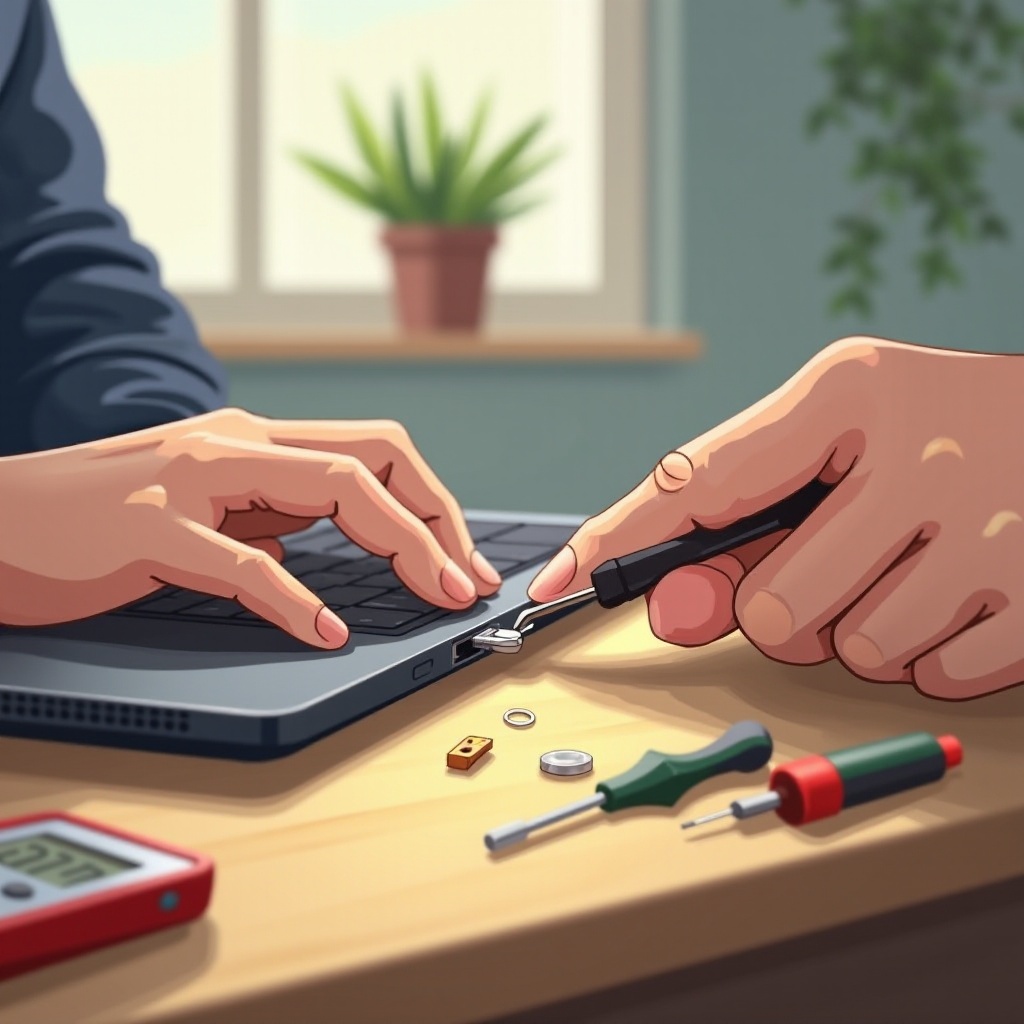
Diagnosing the Issue
Before jumping to solutions, it’s important to properly diagnose the issue. This ensures that we address the root problem without unnecessary steps.
Signs Your Laptop Charger Pin is Broken
- No Charging: Your laptop isn’t charging when it’s plugged in.
- Intermittent Power: The charger works only when held at certain angles.
- Visible Damage: The pin appears bent or damaged.
Early recognition can save you from additional costs and frustration.
Differentiating Charger and Port Problems
To ensure you’re solving the correct issue, determine if the problem is with the charger pin or the laptop’s port:
– Charger Test: Use your charger with another laptop.
– Alternate Charger: Test a different charger on your laptop.
Identifying the exact issue saves time and effort in repairs.
Temporary Fixes for a Broken Charger Pin
Once you’ve confirmed the issue with the charger pin, temporary fixes can keep your laptop functional as you plan a permanent solution.
Using Electrical Tape for Quick Fixes
A simple and temporary solution involves using electrical tape:
1. Find the optimal charging position.
2. Secure with electrical tape without overly tightening.
3. Test to confirm a stable connection.
This method is a short-term fix and should be followed by a permanent repair.
Positioning Techniques to Maintain Connection
Positioning your laptop and charger can sometimes allow for uninterrupted charging:
– Use a stable, flat surface.
– Adjust the charger angle to discover stable positions.
These techniques are effective short-term strategies while waiting for repairs.
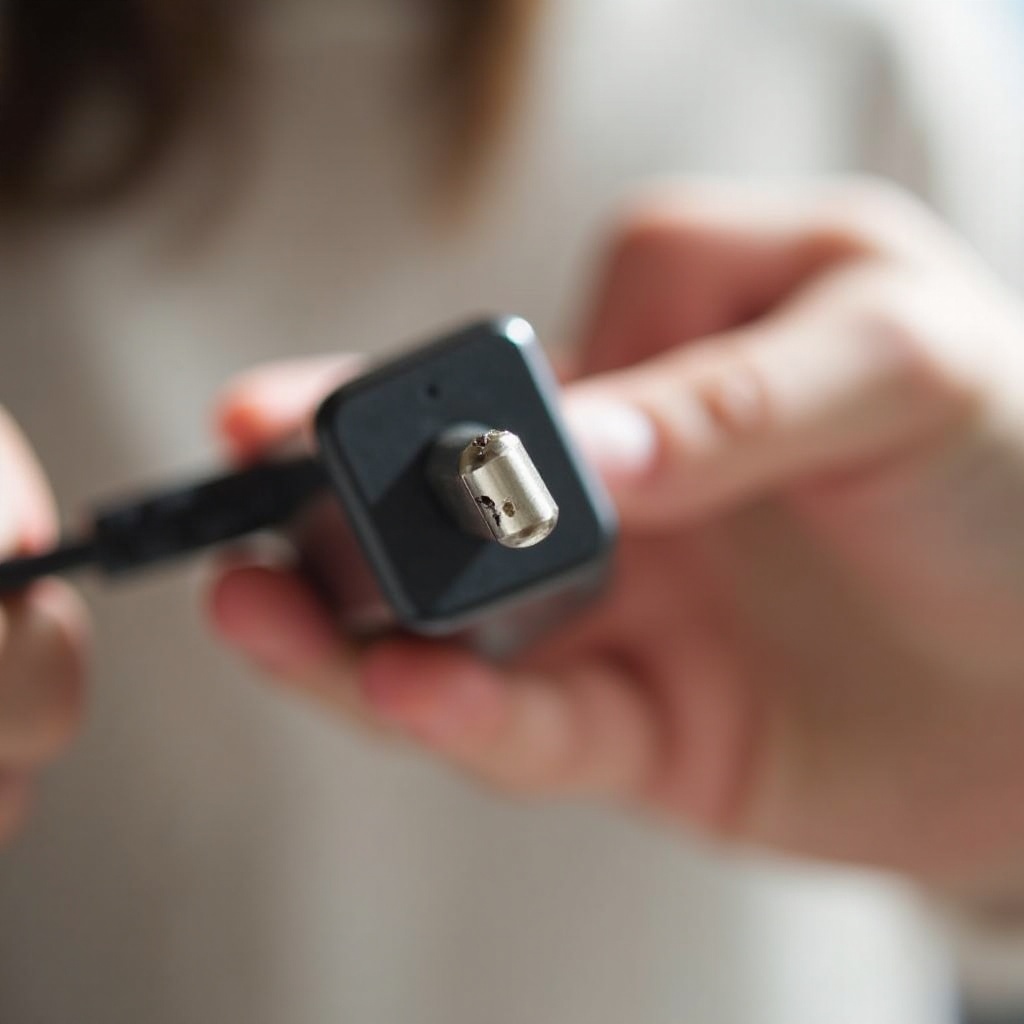
Permanent Solutions and Repairs
Addressing the problem permanently involves either repairing or replacing the damaged component, ensuring reliable laptop use.
DIY Repair Guide for Charger Pins
For the technically inclined, DIY repair might be an option:
1. Disconnect the charger completely.
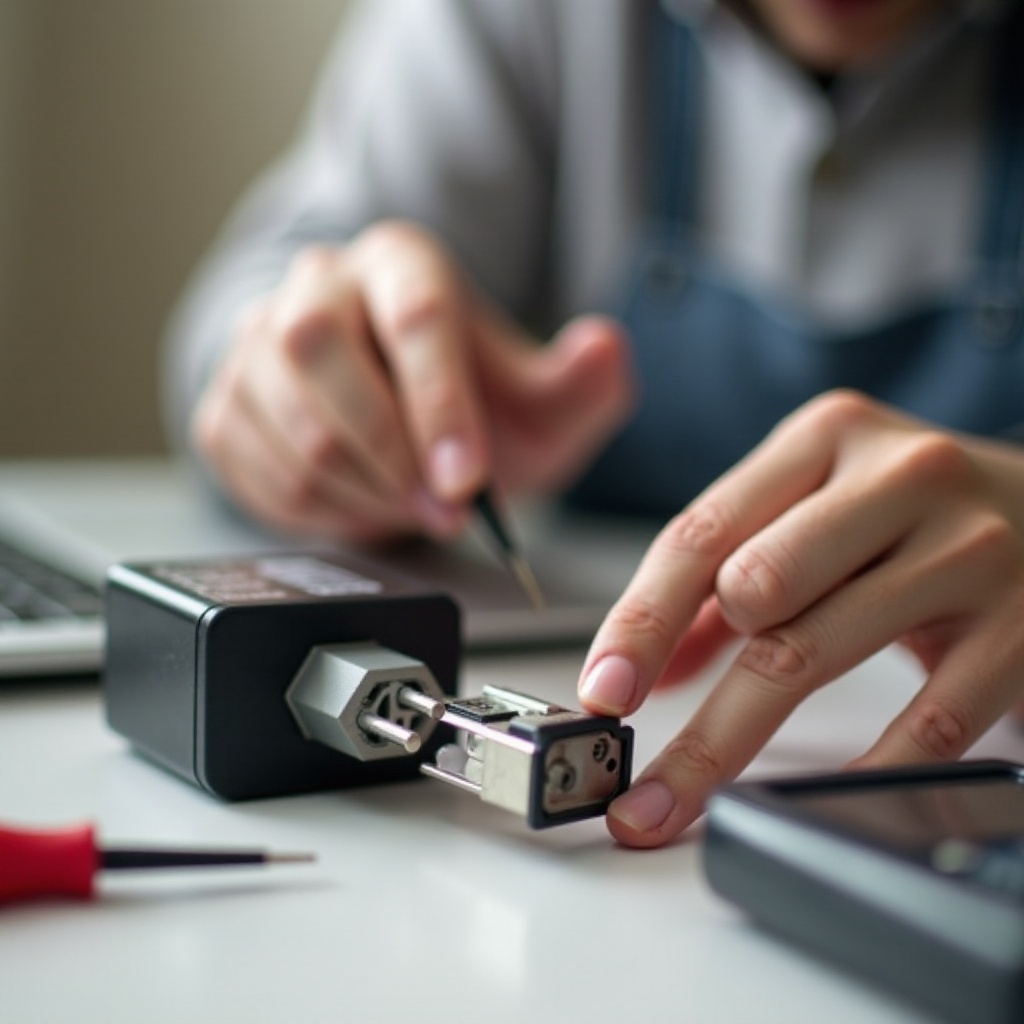
2. Lightly adjust the pin with pliers.
3. If needed, open the charger casing for internal fixes.
4. Reassemble all pieces securely before use.
DIY repairs can extend the life of your current charger, but proceed carefully to avoid further damage.
When to Seek Professional Repair Services
If DIY isn’t feasible or fails, consider professional services:
– Approach certified repair centers.
– Compare repair costs against purchasing a new charger.
Professional repairs often include warranties and ensure proper handling.
Choosing the Right Replacement Charger
Whether due to damage or obsolescence, selecting a replacement with care ensures your laptop functions optimally.
OEM vs. Third-Party Chargers
Original Equipment Manufacturer (OEM) chargers provide reliable performance but are often pricier. Third-party alternatives might save money, yet they require careful inspection:
– Check for specification compatibility.
– Read product reviews for reliability confirmation.
Choosing the right charger can protect your device and wallet from future issues.
Understanding Charger Specifications
Ensure compatibility by understanding key specifications:
– Voltage & Amperage: These must match your laptop’s needs.
– Pin Size: Select a perfectly fitting pin to avoid loose connections.
Mismatched chargers can lead to further damage, so proceed cautiously.
Preventative Measures for Charger Longevity
Maintaining charger health with preventative measures reduces risks of future issues.
Proper Usage and Handling Tips
- Disconnect Correctly: Remove the cord by its plug, not the wire.
- Travel Protection: Use cases to protect your charger and laptop when on the move.
Proper handling can extend the life of your charger considerably.
Safe Storage Solutions
Store chargers in cool, dry areas:
– Avoid tightly wrapping the cords.
– Use velcro ties to prevent tangling or kinking.
Safe storage preserves the charger’s usability and safety.
Accessories to Enhance Charger Safety
Supplementing your setup with additional accessories can further secure your charger.
Benefits of Using Surge Protectors
Surge protectors provide essential defense against power fluctuations:
– Extend the life span of all connected devices.
– Opt for models accommodating your entire setup.
Cable Management Solutions
Orderly cable organization prevents damage:
– Use clips to prevent tripping and unplugging.
– Organize based on usage frequency.
Cable management enhances safety and reduces clutter.
Conclusion
Fixing a broken laptop charger pin unlocks your device’s potential. From diagnosing the issue to executing repairs and choosing replacements, tackling this problem doesn’t have to be daunting. Implement preventative measures to secure your equipment’s longevity.
Frequently Asked Questions
How can I tell if my charger pin is the problem or if it’s the port?
Test your charger with another laptop and vice versa to determine whether the charger pin or port is faulty.
Are DIY fixes for charger pins safe?
DIY fixes can be safe if done carefully. Ensure you have the proper tools and guidance to avoid more damage.
What should I look for when buying a replacement charger?
Focus on compatibility, checking voltage, amperage, and pin size to ensure a perfect match for your laptop.