

 By
Introduction
Starlink has become a game-changer in providing internet access, reaching areas that were once out of reach. But like any technology, it can face issues, particularly with the router not working as expected. Understanding how to troubleshoot these problems is crucial for maintaining a steady internet connection. This guide offers practical solutions to get your Starlink router back in working order quickly and effectively.
Understanding Your Starlink Router
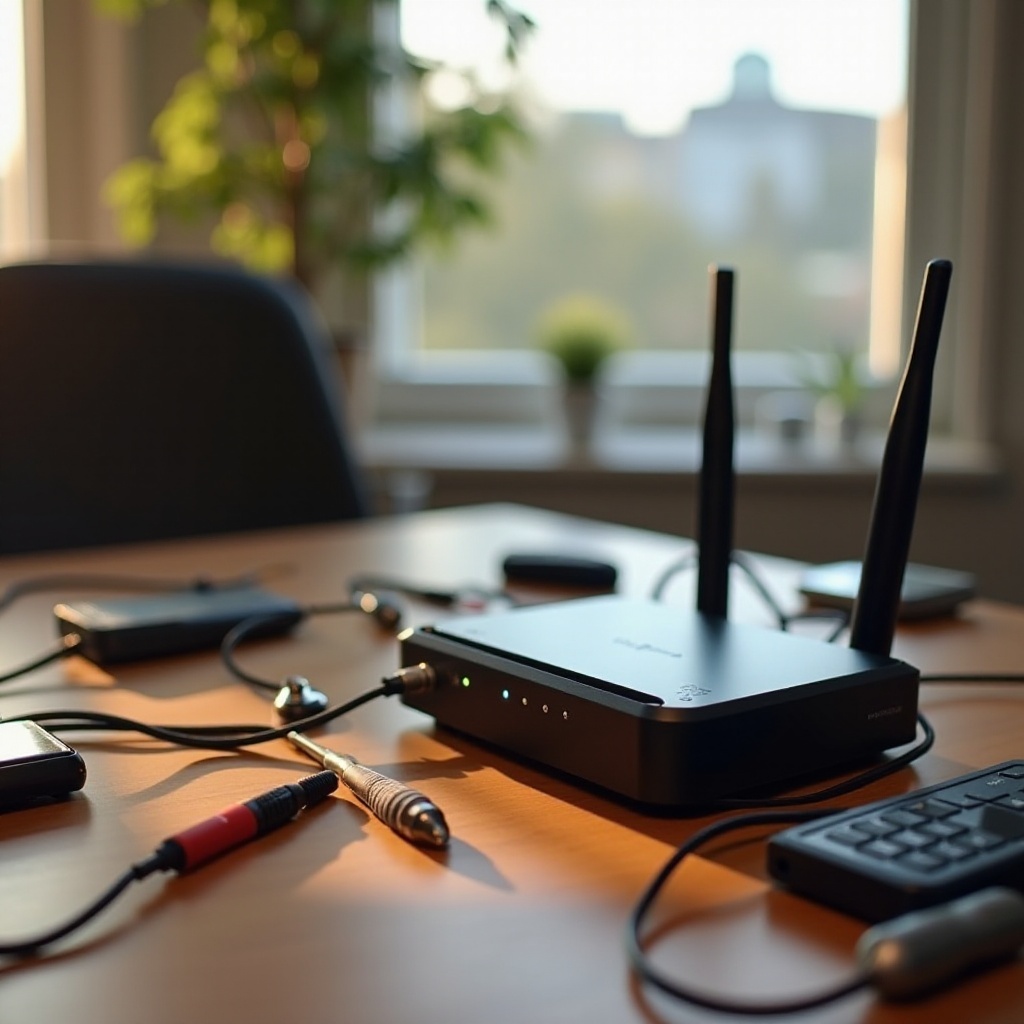
The first step in resolving any router issues is understanding your Starlink system’s key components. It includes the satellite dish, the router, and the necessary cables. The router is essential, distributing the satellite signal to your networked devices. Equally important is keeping your firmware updated, as newer versions often fix existing bugs and improve performance, contributing to optimal operation.
Common Problems with Starlink Routers
Various issues can arise with Starlink routers, most commonly intermittent connectivity. This is frequently due to physical obstructions like buildings or trees affecting the satellite signal. Additionally, slow internet speeds may indicate network congestion or outdated firmware. Occasionally, there might be a complete drop in internet service. Recognizing these problems early can ease the troubleshooting process, allowing for swift action.
Basic Troubleshooting Steps
Let’s move on to some fundamental troubleshooting steps you can take:
- Check All Connections: Ensure that all cables, including the power and network cables, are secure and undamaged.
- Power Cycle the Router: Turn off your router, wait for ten seconds, and then turn it back on. This simple reset can often resolve connectivity issues.
- Verify Service Availability: Confirm that your Starlink service is active and check for any outages or disruptions in your area via their app or website.

Optimizing Your Network Setup
Once basic checks are completed, consider optimizing your network setup. Proper placement of your satellite dish and router is crucial for optimal performance. The dish should be placed in a location with an unobstructed view of the sky. Position your router centrally in your home to reduce interference and enhance signal strength.
Advanced Troubleshooting Techniques
If initial troubleshooting attempts don’t resolve the issue, it may be time to try advanced techniques:
- Resetting the Router: Use the reset button on the router to restore factory settings, then reconfigure your network settings.
- Firmware Updates: Regularly check for firmware updates through the Starlink app or website. Updates can resolve issues and enhance performance.
- Use Diagnostic Tools: Utilize diagnostic tools offered within the Starlink app to gain insights into any ongoing issues and potential solutions.
When to Contact Starlink Support
If problems persist despite your best efforts, Starlink support can provide further assistance. Prepare your account information, error messages, and a comprehensive description of the ongoing issue before contacting them. This information helps expedite the troubleshooting process and improves the response’s accuracy and relevancy.
Preventative Measures for Stable Connectivity
To prevent future connectivity issues, adopt proactive strategies. Regular maintenance, such as cleaning the satellite dish to remove debris and ensuring all hardware remains updated, is vital. Keeping an eye on Starlink’s developments can also help you stay informed about potential changes or improvements that could benefit your service.
Conclusion
Resolving issues with your Starlink router is essential for continuous access to reliable and fast internet. By following these troubleshooting steps and preventative measures, you can ensure your Starlink system operates smoothly and effectively. For problems beyond your expertise, don’t hesitate to contact Starlink support for professional assistance.
Frequently Asked Questions
How do I reset my Starlink router?
To reset, find the reset button on your router, press and hold it for about 10 seconds to restore factory settings.
What should I do if my Starlink router keeps dropping connection?
Check for physical obstructions and ensure your firmware is up to date. Relocate the router to reduce interference.
How can I update my Starlink router firmware?
Open the Starlink app, go to settings, and look for available firmware updates. Follow instructions to update.