

 By
By Introduction
The Xbox Elite Controller is a favorite among gamers for its precision and customizable features. Nonetheless, even the most advanced controllers can run into issues over time. Common problems include joystick drift, unresponsive buttons, and connectivity hiccups. These issues can disrupt your gaming experience, making it essential to understand and resolve them. In this guide, we provide effective strategies to troubleshoot and fix these common Xbox Elite Controller issues so you can get back to enjoying your games.
Common Issues with Xbox Elite Controllers
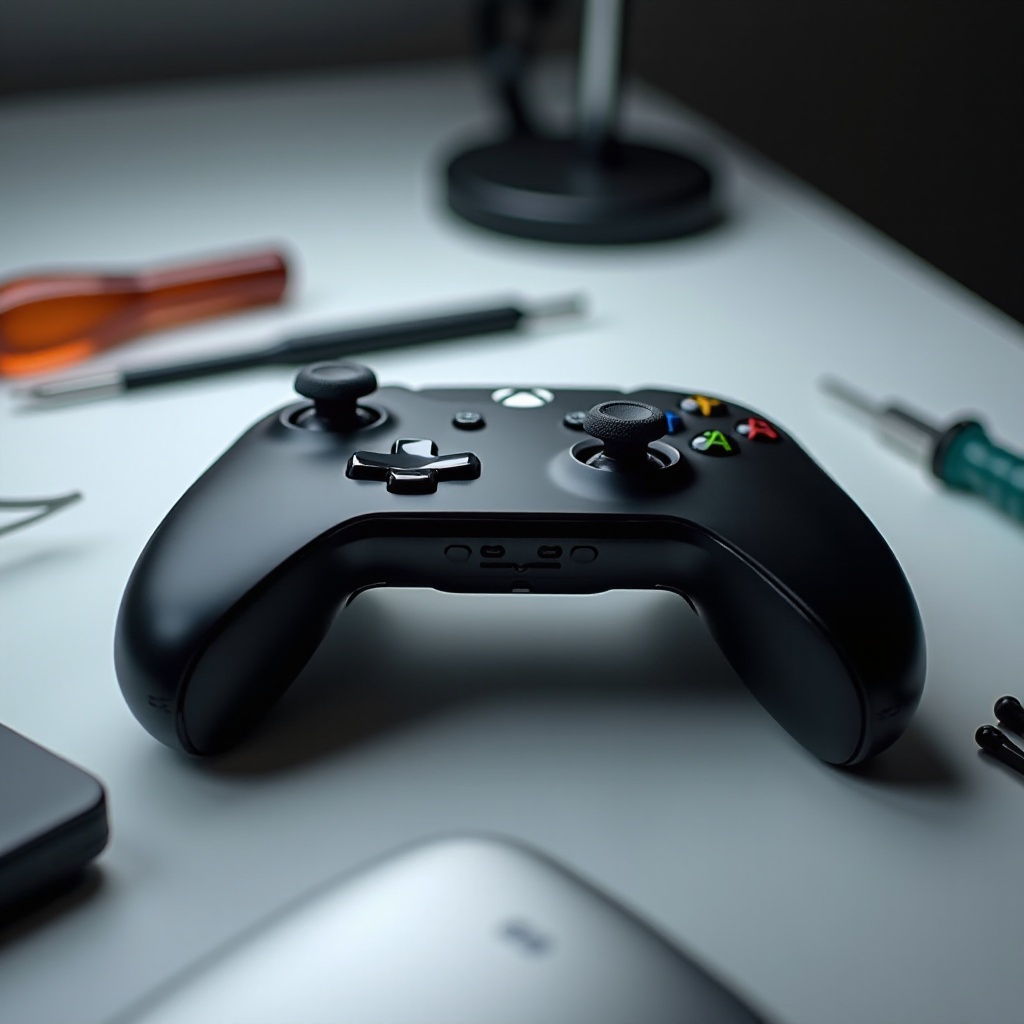
Before diving into solutions, it’s crucial to identify the specific issues that commonly affect Xbox Elite Controllers. These issues can often be rectified with the right approach.
Drifting Joystick
Joystick drift is a widespread issue where the joystick registers movement without any input from the user, affecting gameplay accuracy. Often, this is caused by dust accumulation or the natural wear and tear of internal components over time.
Unresponsive Buttons
Unresponsive or sticky buttons can make any game tedious. These issues typically arise due to debris underneath the buttons or damage to the circuitry.
Connectivity Problems
One standout feature of the Xbox Elite Controller is its wireless connectivity. However, users sometimes encounter issues like disconnections or failure to connect, which can be particularly frustrating.
Trigger Sensitivity Issues
Problems with trigger sensitivity can hamper performance in games that require precise control. This usually results from worn trigger mechanisms or the need for recalibration.
Quick Troubleshooting Tips
Before undertaking detailed fixes, consider these quick troubleshooting tips to bring your Xbox Elite Controller back to optimal function.
-
Restart the Console: A straightforward restart can often clear temporary glitches. Simply turn off your Xbox console, then turn it on again to determine if the issue is resolved.
-
Check for Firmware Updates: Ensure your controller’s firmware is current by connecting to the console and checking settings for updates.
These basic steps can sometimes solve the more superficial problems, allowing you to focus on other issues at hand.
Step-by-Step Fixes for Xbox Elite Controller Problems
If quick fixes don’t address the problems, follow these detailed steps for a more thorough resolution of your Xbox Elite Controller issues.
Fixing Drifting Joysticks
-
Clean the Joystick: Use a cotton swab dampened with isopropyl alcohol to clean around the joystick’s base carefully.
-
Recalibrate the Controller: Connect the controller to a PC and use calibration tools to re-adjust the joystick’s sensitivity settings.
-
Replace the Joystick Module: When cleaning and recalibration aren’t enough, consider replacing the joystick module. This process involves opening the controller and installing a new part and is best done by those with experience in DIY repairs or professionals.
Resolving Unresponsive Buttons
-
Check Button Mapping Settings: Sometimes, incorrect button mappings are to blame. Verify and, if necessary, reset these settings.
-
Clean the Button Contacts: Disassemble the controller to clean button contacts with isopropyl alcohol carefully.
-
Replace Worn-Out Buttons: For persistent issues with buttons, you may need to replace them. Purchase the appropriate replacement parts and follow a tutorial to install them correctly.
Handling Connectivity Issues
-
Troubleshoot Bluetooth Connection: Ensure your controller is in pairing mode and attempt to reconnect. Remove previously paired devices that might interfere.
-
Reset Wireless Connections: Access your console’s network settings to reset wireless settings, then re-pair the controller.
-
Update Drivers on PC: For PC users, confirm that all necessary drivers are installed and up-to-date.
Adjusting Trigger Sensitivity
-
Calibrate Triggers: Utilize the Xbox Accessories app to fine-tune trigger sensitivity settings.
-
Use Third-Party Tools: Consider using third-party software tools that provide more precise adjustments. Choose reputable software for safe results.
Preventive Maintenance Tips
Routine maintenance can help prevent these issues from happening again.
- Regular Cleaning Routines: Clean the controller with a dry cloth regularly to minimize dust buildup.
- Safe Storage Suggestions: Store the controller in a dust-free environment or a protective case to extend its lifespan.
Preventive care can often protect your investment in your gaming gear, avoiding the frustration of repeated problems.
When to Seek Professional Help
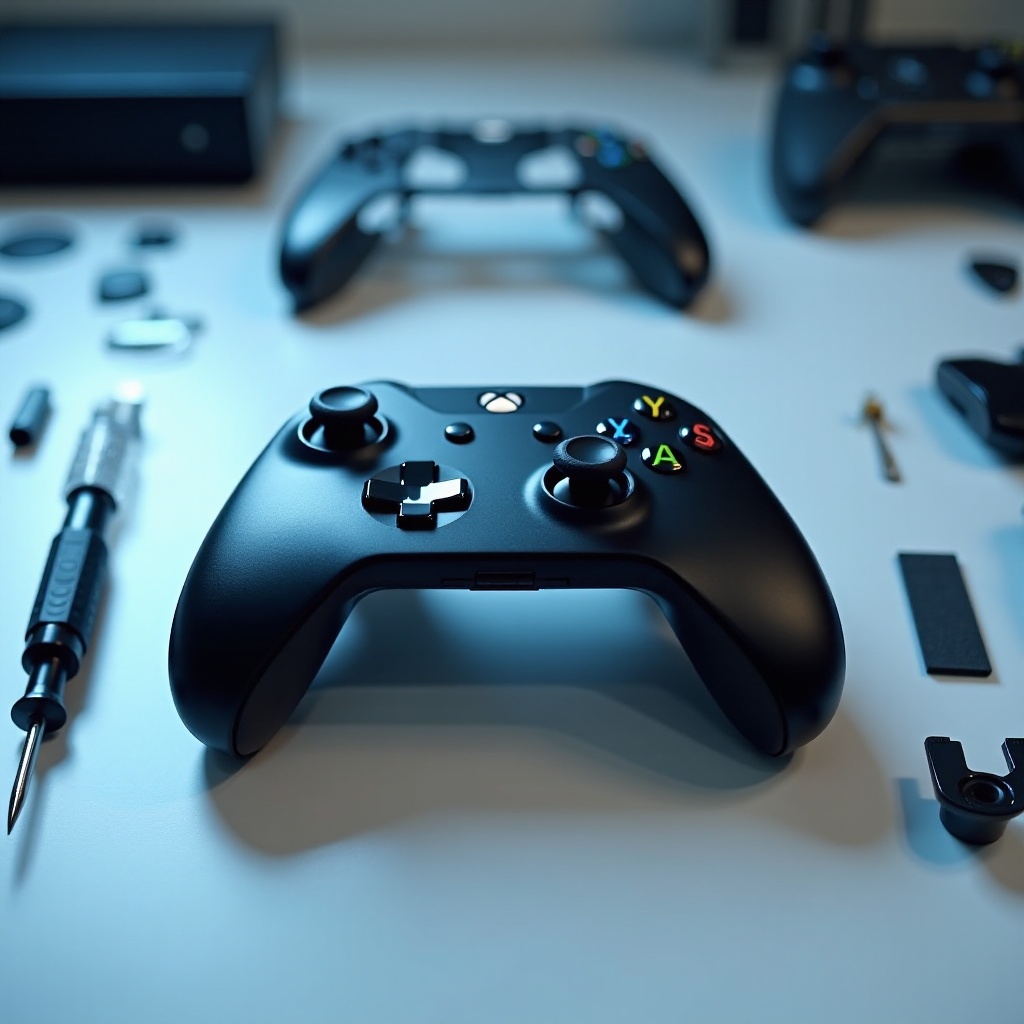
Should all else fail, professional help might be warranted. Certified technicians can diagnose and repair deeper issues that home remedies can’t address.
Conclusion
Troubleshooting your Xbox Elite Controller doesn’t have to be daunting. With an understanding of common issues like joystick drift and unresponsive buttons, getting your controller back into shape becomes a straightforward task. Implementing regular maintenance will help you prevent these issues from recurring, ensuring your gameplay remains uninterrupted and enjoyable.
Frequently Asked Questions
How can I fix joystick drift on my Xbox Elite Controller?
To fix joystick drift, clean the joystick area with isopropyl alcohol, recalibrate using a PC, or replace the joystick module if persistent.
What should I do if the buttons on my Xbox Elite Controller don’t work?
First, check and reset button mappings. Clean the button contacts with alcohol, and consider replacing worn buttons for serious cases.
How do I reset the wireless connection on my Xbox Elite Controller?
Access the console’s network settings to reset wireless connections, then re-pair the controller to resolve connection issues.