

 By
By Introduction
For gamers seeking to elevate their Xbox experience, controller calibration is an essential step. A calibrated controller ensures precise input responses, vital for high-stakes gaming where every move counts. This guide will lead you through calibrating your Xbox controller, addressing potential issues, and maintaining optimal performance.
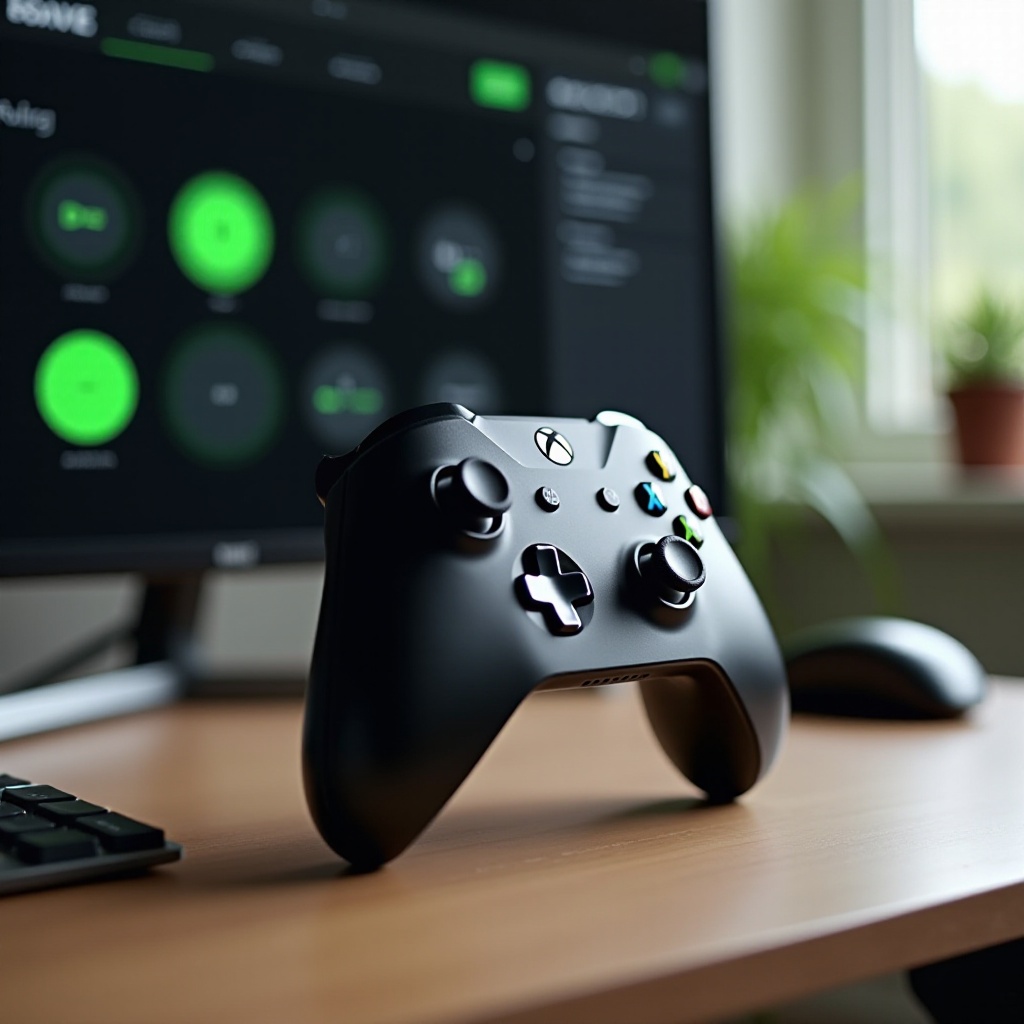
Understanding Xbox Controller Calibration
Controller calibration fine-tunes your device to match input with output precisely. This adjustment corrects sensor discrepancies, eliminating drift—a common problem where movements are registered mistakenly without input.
Precision calibration is critical not just for improving gameplay in fast-paced and precision-demanding scenarios but also for extending the controller’s lifespan, avoiding premature wear from misalignment.
Pre-Calibration Preparation
Preparing effectively for calibration minimizes the risk of complications during the process. Before you start, make sure you’ve attended to the following:
-
Update Firmware and Drivers: Confirm your Xbox console or PC is running the latest firmware. For PC users, check that you have installed the most current drivers.
-
Inspect Controller Hardware: Examine the controller for any visible damage that might affect performance, since calibration cannot fix physical defects.
-
Create a Clean Calibration Environment: Choose a stable and distraction-free area for calibration to guarantee precise execution.
Establishing this foundation ensures a smoother calibration process.
Calibrating Your Xbox Controller on Windows 10/11
For gamers using Xbox controllers with a Windows PC, follow these structured steps to calibrate effectively:
- Access Calibration Settings:
- Go to the Control Panel and find ‘Devices and Printers’. Right-click on your Xbox controller.
-
Select ‘Game controller settings’, click on ‘Properties’, and navigate to the ‘Settings’ tab.
-
Step-by-Step Calibration Guide:
-
Select ‘Calibrate’ to invoke the wizard and follow the instructions to adjust the joysticks and triggers.
-
Tips for Ensuring Accuracy:
- It’s essential to proceed methodically through each step. Should an error occur, reset and begin the calibration process anew.
Now that your Xbox controller is calibrated for PC, your device is ready for any gaming challenge you undertake.
Calibration on Xbox Consoles
Directly calibrating via an Xbox console is straightforward, though it model-specific nuances.
- Using Xbox Console Settings:
- Turn on your Xbox and navigate to the ‘Devices & connections’ section in the settings.
- Select ‘Accessories’ and click on your connected controller.
-
Follow the prompts to complete the calibration.
-
Avoiding Common Pitfalls:
- Ensure the controller is charged or plugged in to prevent sudden disconnections.
- If issues persist, consider resetting the controller firmware through console settings for a fresh start.
A well-calibrated console controller enhances responsiveness and accuracy during any gaming session.
Troubleshooting Common Calibration Issues
Even post-calibration, some challenges might remain. Here are common issues and their fixes:
- Addressing Controller Drift:
- Look for debris under joysticks. Cleaning these areas can often resolve drift issues.
-
Repeat the calibration if drift persists, focusing on precision during each step.
-
Fixing Sticky Buttons:
- Clean any sticky buttons with a cloth and isopropyl alcohol to return fluidity.
-
Regular gentle cleaning can preempt these problems.
-
Resolving Wireless Connection Problems:
- Keep your controller within an effective range of the console.
- Ensure firmware updates are current to mitigate connectivity issues.
Identifying the source allows for quicker resolution of these issues, ensuring a seamless gaming experience.
Post-Calibration Maintenance and Tips
After successfully calibrating, implement a maintenance routine to maintain optimal performance:
- Regular Maintenance Best Practices:
- Regularly wipe the controller with a microfiber cloth to prevent build-up of dust or grime.
-
Use a protective case during storage to minimize potential damage.
-
Storage and Handling Tips:
- Avoid exposure to extreme temperatures or prolonged direct sunlight.
- Unplug removable batteries if storing for extended periods, which preserves battery life.
With these practices, your Xbox controller remains in peak condition, ready for any gaming challenge.
Conclusion
Calibrating your Xbox controller is a straightforward yet essential task for ensuring optimal gaming performance. By following this guide, you prepare your controller for top-level performance and extend its lifespan through regular maintenance. Whether you’re battling online or exploring new worlds, your well-calibrated Xbox controller will be your reliable ally, enhancing every moment of your gameplay adventure.
Frequently Asked Questions
How often should I calibrate my Xbox controller?
Calibrate your controller every few months or if performance issues arise. Regular checks help sustain peak responsiveness.
Can calibration fix all controller issues?
Calibration solves many issues, but physical damage or severe hardware problems may require professional repair.
What should I do if calibration doesn’t solve the problem?
Ensure all firmware is updated. Inspect the controller for damage, and contact support for persistent issues.