

 By
By Introduction
Testing your iPhone speaker is crucial for ensuring clarity during calls, music playback, or streaming videos. A faulty speaker can disrupt not only leisure activities but also critical daily communications. Understanding how to test and maintain your iPhone speaker can prevent potential disruptions and expenses. This comprehensive guide will walk you through step-by-step processes to evaluate your speaker’s performance, identify, and troubleshoot any issues.
Preliminary Checks Before Testing Your iPhone Speaker
Before delving into detailed testing, performing some preliminary checks can save time by ruling out simple issues.
- Update iOS Software: Check that your iPhone is updated with the latest iOS version, as updates often fix known audio bugs.
- Check Volume Settings and Mute Switch: Ensure the volume is turned up and that the mute switch is off.
- Remove Obstructions: Remove any case or screen protectors that might obstruct the speaker. Inspect for dust or debris clogging the speaker grill.
Once you have completed these checks, you’ll be in a better position to proceed with more targeted testing and ensure the problem isn’t due to something easily fixable.
Method 1: Using Built-in iOS Tools to Test Your iPhone Speaker
Apple provides built-in features to help you analyze your speaker’s health without the need for extra tools.
- Testing with System Sounds and Alerts: Navigate to ‘Settings’ > ‘Sounds & Haptics’ and slide the ringer/alerts volume back and forth. Listen for crispness in the sound.
- Using the Settings App for Audio Testing: Make a call or open an app like iTunes or Spotify to assess playing sound clarity and volume. These processes leverage existing iOS functionalities to ascertain the baseline health of the speakers.
If these methods show issues, further testing with third-party solutions can provide additional insights.
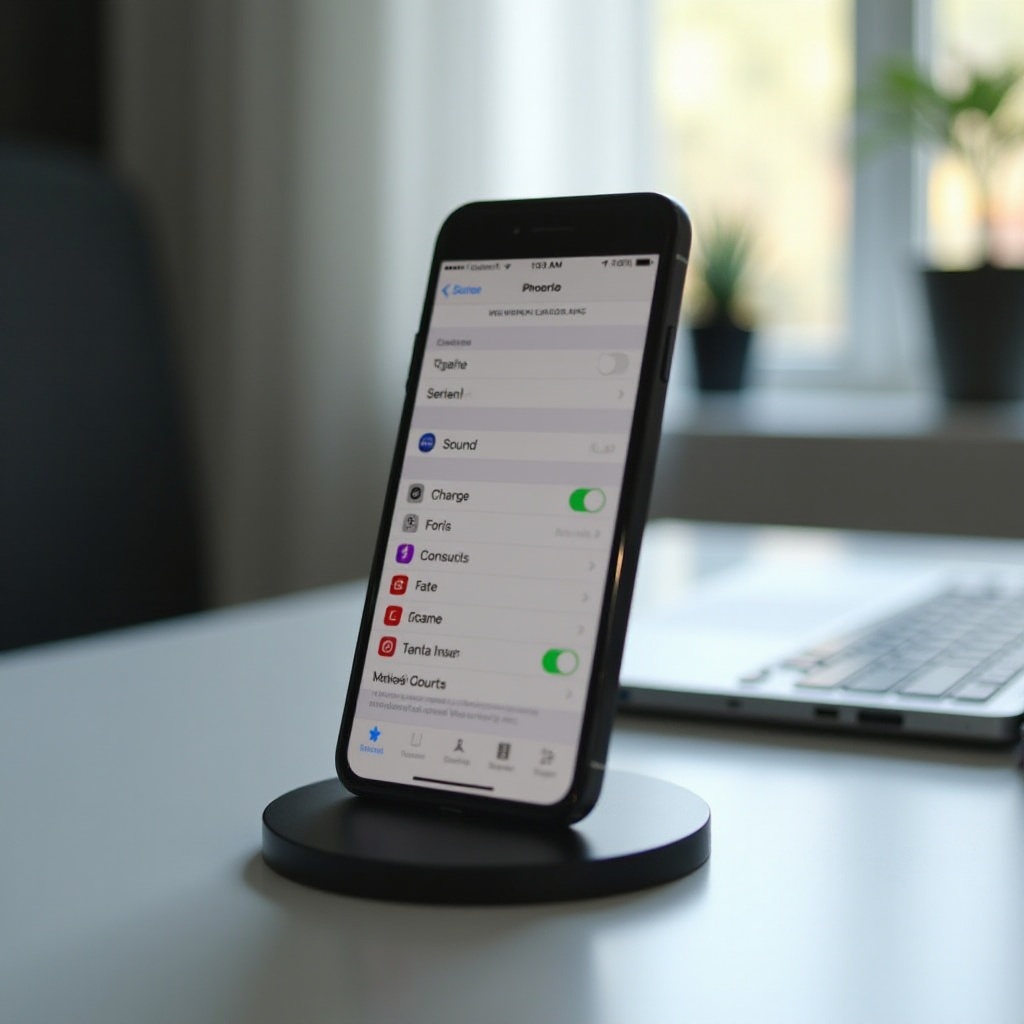
Method 2: Using Third-party Apps for Speaker Testing
For more detailed insights into speaker performance, third-party apps can offer specific diagnostics.
- Recommended Apps: Download top-rated speaker testing applications such as SpeakerBoost or AudioTools from the App Store.
- Step-by-step Guide for App Usage:
- Install your chosen app.
- Follow the app’s instructions to test sound frequencies and output.
- Assess the detailed feedback provided to identify imbalances or distortions.
These apps can diagnose subtle problems that might be missed with native iOS tools, providing a clearer picture of speaker health.
Identifying Common iPhone Speaker Issues
Once the initial tests are complete, it’s important to recognize common speaker problems that can occur.
- Signs of Speaker Damage: Look out for muffled sounds, crackling, or sudden loss of volume.
- Distorted Sound and No Sound Issues: Persistent distortion or complete absence of sound could indicate a hardware issue needing further attention.
Knowing these signs allows you to diagnose and address potential problems early, minimizing disruptions to your audio experience.
Troubleshooting Your iPhone Speaker
If you detect a problem, several troubleshooting steps can help resolve it.
- Basic Troubleshooting Steps:
- Restart your iPhone; this can often clear minor software glitches.
- Make sure Bluetooth is off to avoid audio being directed to a connected device.
- Advanced Troubleshooting Techniques:
- Carefully clean the speaker grill with a soft brush or compressed air to remove debris.
- If problems persist, consider resetting all settings via ‘Settings’ > ‘General’ > ‘Reset’ > ‘Reset All Settings’.
These steps can address both basic and complex issues, helping restore the full functionality of your iPhone speakers.
When to Seek Professional Repair for Your iPhone Speaker
In some cases, seeking professional assistance will be necessary, especially if hardware failure is involved.
- Apple Support and Warranty Information: If under warranty, reach out to Apple Support for repairs or replacements, which may be covered.
- Third-party Repair Options: For devices not under warranty, consider reputable third-party services known for competent iPhone repairs.
Deciding when to seek professional help ensures your device is in capable hands, preventing further damage.
Conclusion
Regular testing and maintenance of your iPhone speaker are crucial for ensuring the best audio experience. By employing the steps outlined in this guide, you can effectively test, troubleshoot, and seek necessary repairs for your device, ensuring your iPhone’s performance remains optimal for the foreseeable future.
Frequently Asked Questions
How often should I test my iPhone speaker?
Regularly test your speaker quarterly, or whenever you notice changes in sound quality, to ensure ongoing performance.
Can a software update fix speaker issues?
Yes, software updates can resolve bugs affecting sound performance but won’t fix hardware problems.
Is it safe to clean my iPhone speaker myself?
Yes, using a soft-bristled brush or compressed air carefully can safely clean the speaker grills without causing damage.