

 By
By Introduction
JBL Bluetooth speakers are renowned for their exceptional sound quality and portability, making them a favorite among audio enthusiasts. Getting your JBL speaker connected seamlessly with your devices allows you to fully enjoy your music, podcasts, and media wherever you go. This guide will walk you through connecting your JBL speaker efficiently, understanding common issues, and enhancing your overall experience.
Understanding JBL Bluetooth Speakers
JBL offers a diverse lineup of Bluetooth speakers, each tailored to different needs and environments. Whether it’s a rugged speaker for outdoor adventures or a compact model for travel, JBL has something for everyone. Familiarizing yourself with your speaker’s model and features is essential as it helps you utilize all the capabilities, ensuring you get the most out of your device. With this foundation, let’s move on to connecting your speaker to various devices.
Step-by-Step Guide to Pairing Your JBL Speaker
Initial Setup
- Power On: Locate the power button on your JBL speaker and press it to turn the device on. The power button is typically easy to find on the top or side.
- Activate Bluetooth Mode: Press the Bluetooth button until the LED light begins blinking, signaling that the speaker is in pairing mode and ready to connect.
Connecting with Smartphones
- Access Bluetooth Settings: On your smartphone, go to ‘Settings’ and select ‘Bluetooth.’ Make sure the Bluetooth feature is turned on.
- Find Your JBL Speaker: Your speaker should appear in the list of available devices under its model name. If it doesn’t, ensure it’s in pairing mode.
- Pair the Device: Select your JBL speaker from the list. Once connected, you will notice the LED on the speaker stops blinking, indicating a successful pairing.
Connecting with Laptops and Desktops
- Open Bluetooth Settings: On a Windows PC, navigate to ‘Settings’ and then ‘Devices.’ On a Mac, head to ‘System Preferences’ and select ‘Bluetooth.
- Search for Devices: Ensure your computer’s Bluetooth is on, and allow it to find nearby devices. Your JBL speaker should populate in the list.
- Pair Your Speaker: Click on your speaker’s name to connect. Some systems might require you to confirm the connection on both your computer and the speaker.
Connecting your JBL speaker across multiple devices ensures you have versatility in how you enjoy audio, whether through a smartphone, computer, or beyond.
Troubleshooting Common Connection Issues
Despite an easy initial setup, connection issues can occasionally arise. Understanding potential problems and their solutions can save time and frustration.
Speaker Not Showing in Device List
- Double-check that your speaker is in pairing mode; the LED light should blink.
- Restart Bluetooth on your device, wait a few seconds, and attempt to reconnect.
- If the issue persists, restart your smartphone or computer.
Connection Drops Frequently
- Ensure that both devices are within the typical Bluetooth range of 30 feet to prevent disconnection.
- Eliminate potential sources of interference, such as walls or electronic devices that may disrupt the signal.
Audio Lag or Latency Issues
- Updating the speaker’s firmware often resolves latency problems, ensuring the latest performance standards.
- Check your audio source for any streaming issues that might contribute to delays.
Tackling these common problems head-on enhances your JBL speaker’s reliability and performance.
Enhancing Your JBL Speaker Experience
Once your speaker is connected, several features and tips can elevate your listening experience to new levels.
Using JBL Connect+ Feature
JBL Connect+ allows users to link multiple speakers for a more immersive sound experience, ideal for larger gatherings or expansive spaces.
- Simply activate the JBL Connect+ button on your speaker.
- Use the JBL app to manage how your speakers are connected, creating a stereo or surround sound effect when needed.
Optimizing Battery Life
- To maximize battery longevity, fully charge your speaker before long durations of use and unplug it once fully charged.
- If available, use power-saving settings to extend playtime even further.
Utilizing JBL App Features
The JBL app serves as a useful tool for maximizing your speaker’s potential.
- Regularly check the app for firmware updates that ensure your speaker operates at peak performance.
- Customize your audio experience with equalizer settings tailored to your preferences.
Advanced Troubleshooting Tips
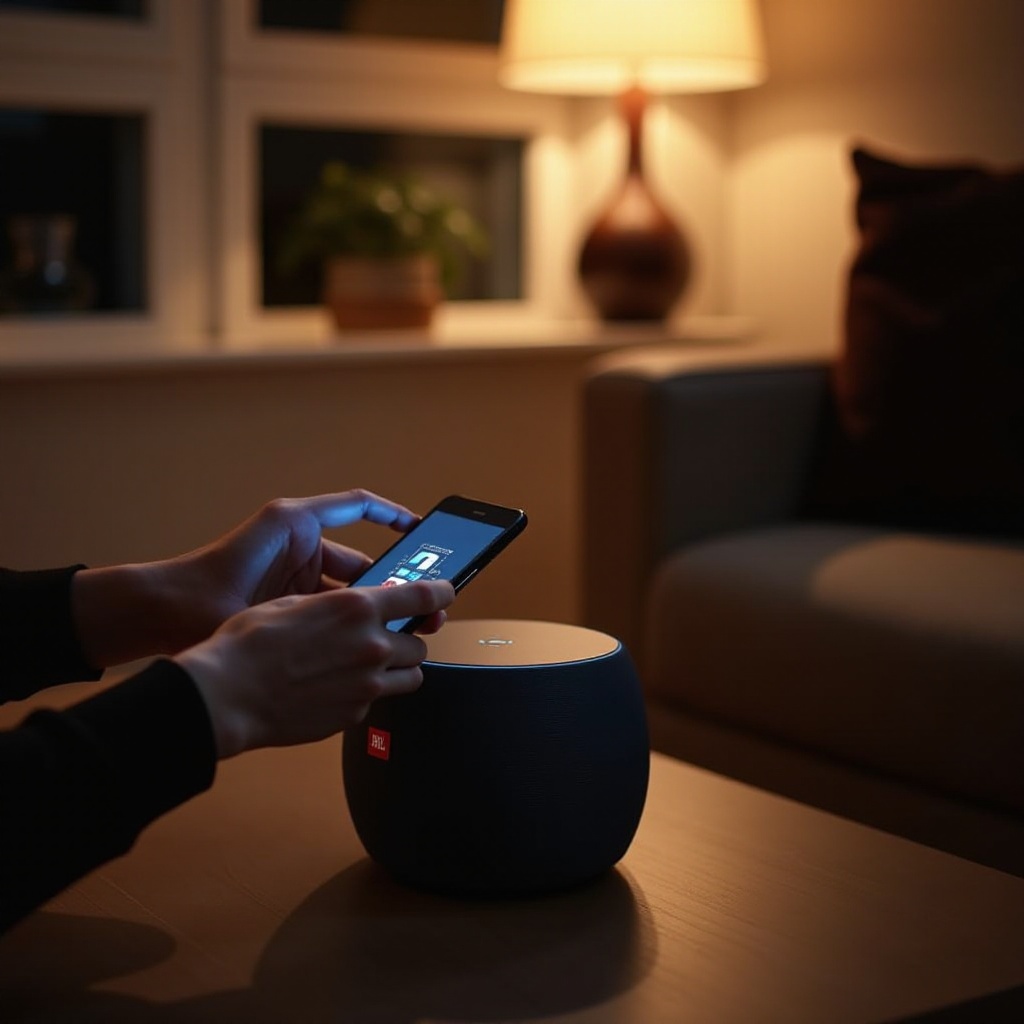
Even with all these features, technical issues might still surface. Here are some advanced techniques to resolve persistent problems:
Resetting Your JBL Speaker
If the speaker becomes unresponsive or refuses to pair, perform a reset.
- Press and hold the volume up and play/pause buttons simultaneously for about 10 seconds. This action turns off the speaker, which you can then power back on and attempt to reconnect.
Updating Firmware
Outdated firmware can lead to connectivity issues. Always keep your firmware current.
- Use the JBL app to receive update notifications and follow the instructions to install the latest firmware, ensuring smooth operation.
Ensuring Device Compatibility
Compatibility issues can prevent successful connections.
- Verify that your device’s Bluetooth version is compatible with your JBL speaker model. Newer speaker models may require recent Bluetooth standards that some older devices lack.
These advanced steps ensure that you maintain a strong, dependable connection with your JBL speaker under various conditions.
Conclusion
Mastering the connection of your JBL Bluetooth speaker enhances both your audio enjoyment and the device’s functionality. By following these steps and utilizing connectivity and troubleshooting strategies, you can ensure your listening experience is always seamless and integrated. Now that you’re equipped with this knowledge, you’re ready to enjoy the superior sound quality JBL speakers are known for, anytime and anywhere.
Frequently Asked Questions
Can I connect my JBL speaker to multiple devices at the same time?
JBL speakers typically connect to one device at a time, but you can switch connections by disconnecting one device and pairing another.
How do I reset my JBL Bluetooth speaker if it won’t connect?
Press and hold the volume up and play/pause buttons for about 10 seconds until the device powers off, then turn it on again.
Why is my JBL speaker’s sound cutting out intermittently?
Ensure your device is within the 30-foot Bluetooth range and there are no obstacles or devices causing interference.